
Introduction
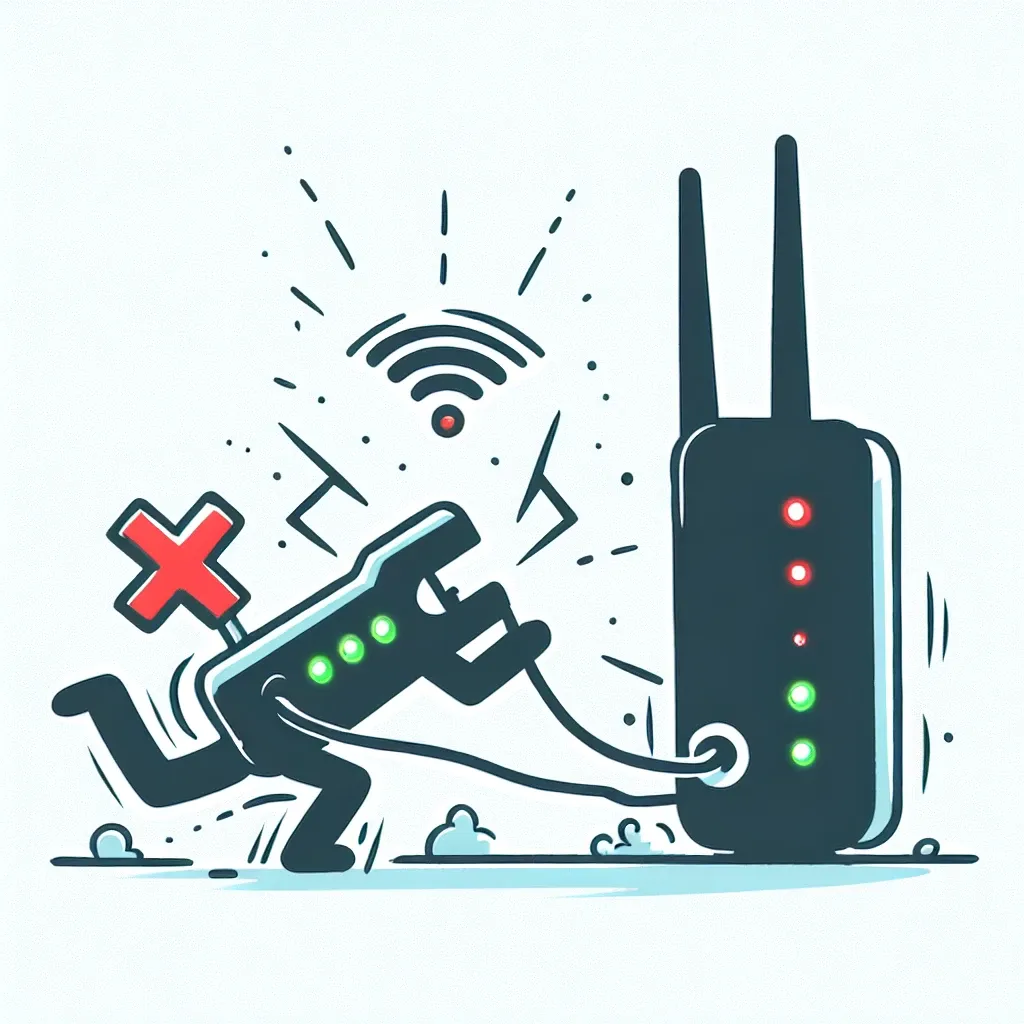
Dealing with internet connectivity issues can be frustrating, especially when your router fails to detect your modem. This comprehensive guide will walk you through troubleshooting steps to resolve this issue effectively.
Common Reasons for Router Not Detecting Modem
Understanding the underlying reasons is crucial for effective troubleshooting.
| Possible Reasons | Description |
|---|---|
| Connection Issues | Loose or improperly connected cables |
| Firmware Problems | Outdated or corrupt firmware |
| Configuration Errors | Incorrect router settings |
| Hardware Faults | Faulty router or modem hardware |
Step-by-Step Troubleshooting Guide
1. Verify Physical Connections
Ensure that all cables are securely connected to both the router and modem. Verify that the power cords are plugged in and that all devices are switched on.
- Check Ethernet Cables: Ensure the Ethernet cable connects the modem’s Ethernet port to the router’s WAN port.
- Inspect Power Cords: Confirm that both the modem and router have power and that their respective power adapters are connected.
2. Restart Your Devices
Restarting both your router and modem can often resolve connectivity issues. Follow these steps:
- Turn off the router and modem by unplugging their power cords.
- Wait for at least 30 seconds.
- Plug the modem’s power cord back in and wait for it to fully boot up, indicated by solid lights.
- Plug the router’s power cord back in and wait for it to fully boot up.
3. Update Firmware
Outdated firmware can cause detection problems. To update the router’s firmware:
- Access the router’s administration interface via a web browser (typically
192.168.1.1or192.168.0.1). - Navigate to the firmware update section.
- Download the latest firmware from the manufacturer’s website and follow the instructions to update.
4. Check and Reset Router Configuration
Incorrect configuration settings may be the culprit. To reset:
- Access the router’s administration interface.
- Navigate to the settings and look for a factory reset option.
- Proceed with the factory reset and reconfigure your router.
5. Test with a Different Router or Modem
To rule out hardware faults, try using a different router or modem:
- If available, connect a different router to the modem.
- Similarly, connect the current router to a different modem.
6. Contact ISP or Manufacturer
If all else fails, it might be time to contact your Internet Service Provider or the router/modem manufacturer for further assistance and possible replacement.
Conclusion
Troubleshooting a router that is not detecting a modem involves systematically checking connections, restarting devices, updating firmware, resetting configurations, and testing hardware. Following these steps can help you regain connectivity and ensure a smoother internet experience.