
Introduction
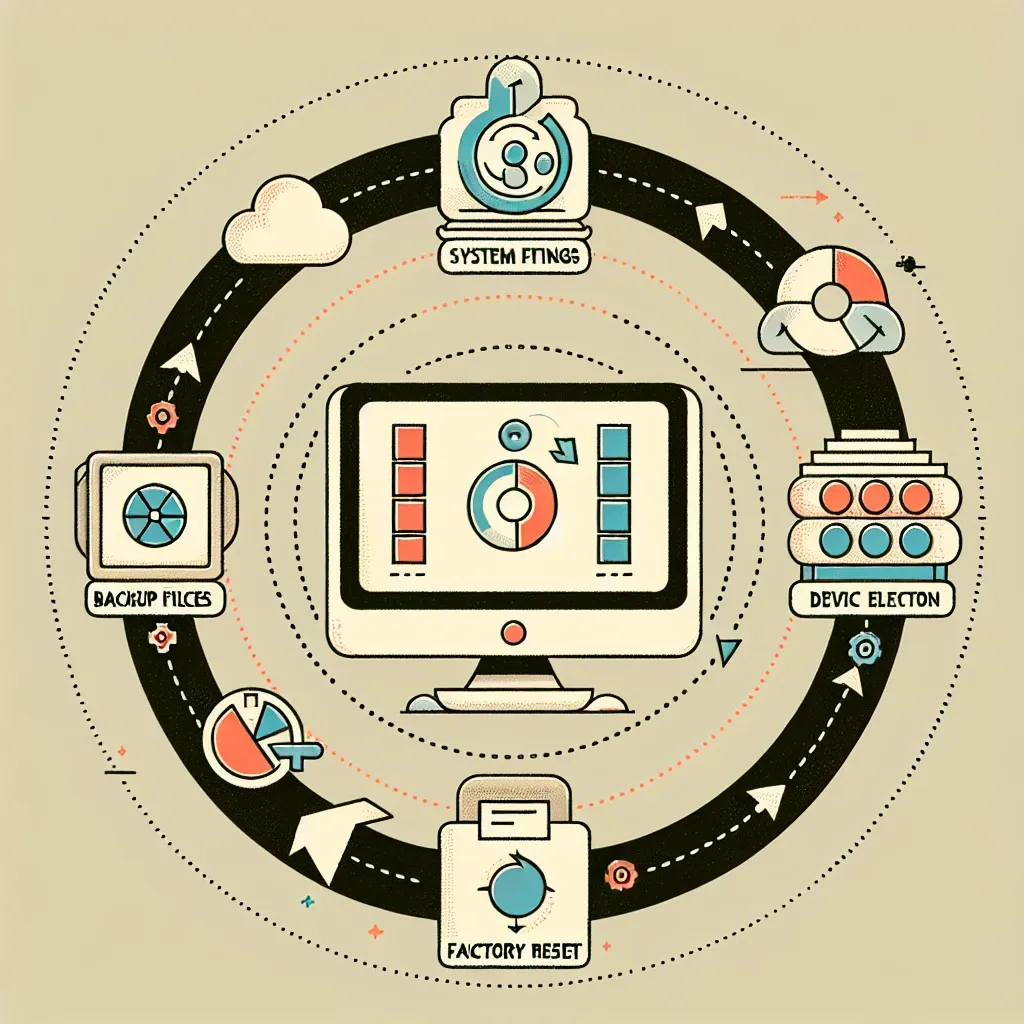
Resetting your PC can rejuvenate its performance and resolve various issues, but it’s important to approach this task with caution. Taking preliminary steps can help protect your data and ensure a smoother reset process. In this article, we will guide you through the necessary actions to take before resetting your PC, so you can do so safely and effectively.
1. Backup Your Data
Before making any significant changes to your system, the first and foremost step is to back up your important data. Here’s how to do it:
- Identify Important Files: Go through your documents, photos, videos, and any other files that you cannot afford to lose.
- Use External Storage: Connect an external hard drive or USB flash drive to your PC and transfer your important files there.
- Cloud Backup: Consider using cloud services like Google Drive, Dropbox, or OneDrive for additional backups.
2. Create a System Image
Aside from backing up individual files, creating a system image can be crucial. A system image is a snapshot of your entire system, including the operating system, installed programs, settings, and files. If something goes wrong after the reset, you can restore your PC to its previous state:
- Access Backup and Restore: Go to the Control Panel, click on Backup and Restore, and then select Create a system image.
- Follow the Wizard: Choose where to save the image (external hard drive, DVDs, or network location) and follow the prompts to complete the process.
3. Make a List of Installed Programs
Before resetting your PC, it’s wise to document the installed programs and applications, as they will need to be reinstalled afterwards:
- Create a List: Open the Control Panel, navigate to Programs and Features, and write down the names of the applications.
- Check Licenses: Make note of any licenses or product keys associated with paid software.
4. Note Down Your Settings
If you have custom settings, preferences, or configurations in applications or your operating system, take note of them:
- Browser Settings: Export bookmarks and settings from your web browser.
- Email Configurations: If you use email clients, take screenshots of your settings.
5. Deauthorize Software
Some software applications, especially those that require licenses, may have limits on the number of authorized devices. To avoid issues, deauthorize software where applicable:
- iTunes: If you use iTunes, go to Account > Authorizations > Deauthorize This Computer.
- Adobe Products: Deactivate any Adobe products by signing in and using the deactivation option.
6. Check for Updates
Before resetting, ensure your operating system and drivers are fully updated:
- Windows Update: Go to Settings > Update & Security, and check for updates to download and install.
- Driver Updates: Visit the manufacturer’s website for hardware components to check for the latest driver versions.
7. Disconnect Peripherals
To avoid complications during the resetting process, disconnect all unnecessary peripherals:
- Remove External Devices: Unplug USB drives, printers, and external hard drives, unless they are being used for backups.
- Disconnect Network: Temporarily disconnect from the internet for a more stable reset process.
8. Prepare for Reinstallation
After a reset, you’ll need to reinstall software and applications:
- Have Installation Media Ready: Ensure you have installation discs or executable files for applications you need to reinstall.
- Gather Product Keys: Make sure you have product keys for software that requires activation.
9. Understand the Reset Options
Windows provides different reset options, and understanding them is key:
- Keep My Files: This option will remove apps and settings but keep your personal files.
- Remove Everything: This option will remove all files, apps, and settings. Choose this if you want a fresh start.
10. Final Checks
Before hitting the reset button, do a final check:
- Review Your Backups: Double-check that all important data has been backed up successfully.
- Confirm Your List: Make sure you have the list of programs and settings accessible.
Conclusion
Resetting your PC can breathe new life into it, but it’s crucial to take these preliminary steps to safeguard your data and settings. By backing up your information, noting installed programs, and preparing for reinstallation, you can ensure a smoother transition. No matter the reason for your reset, being well-prepared will save you time and headache in the long run.